| Home |
| Download |
| Buy |
| How to use |
| FAQ |
| Update History |
| Contact us |
How to download
How to download? 2, Enter a task name, such like "Mytask.egmd". All task files are saved as *.egmd. The followed sketch map explains the area scope:
How to get the latitude/longitude information from Google Maps? You can right-click a location on the map(http://maps.google.com) and select "What's here?" , The coordinates of that location will automatically appear in the Search box at the top of the page. 4, Define the zoom level. The zoom level defines the image precision. For trial version, the max zoom level is 13, so you can not download high precision images. We also provide command line support. Click here to see how to start a task from command line. Click here to see more examples How to download customized google maps? Please click here to see more detail help about how to download customized maps.
You can view downloaded maps without combining them into one big BMP. Then open a task from menu "File"->"Open task..." to view the map. For example: This is satellite maps:
This is street maps:
This is hybrid maps:
View maps with browser:
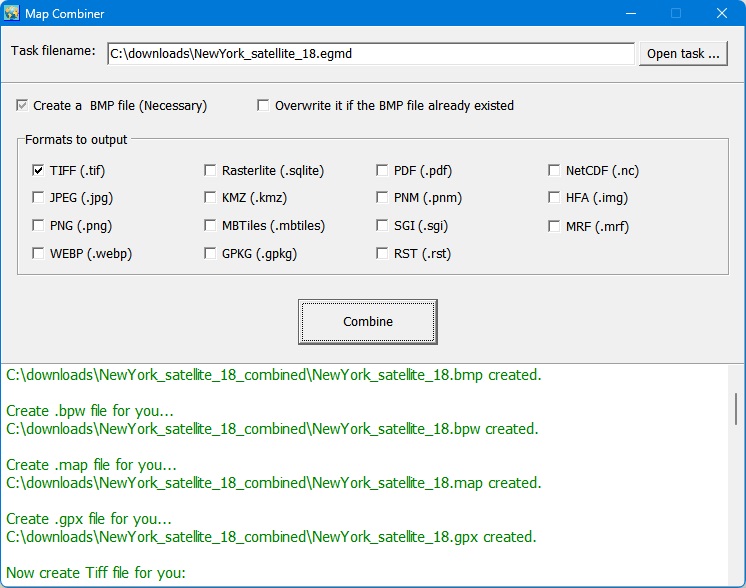
How to combine small images into one big map?
We provide a tool : Combiner.exe. You can run it from menu "Tools"->"Map Combiner".
If the bmp file size is too big, you can use tool "BMP Splitter" to split it into some small bmp files.
1. Google map uses a protection mechanism to keep a good quality of service. If one makes too much requests, google map will add its IP address to a blacklist, and you may see a message: If this happend, you will see a messge in log window: May be your IP is banned by Google. Then you must wait for some time or change to another IP. To avoid IP banned, you can try to set the downloader to pause some minutes (default 1 minutes).
2. For some area, there are not high precision images on google's server, so may be caused a error when you try to download such images. If this happend, you need to set smaller zoom size to download. (For most areas, the max zoom level is 18)
How to export tiles to sqlite database Click menu->'Export to MBTiles database', then will show this window:
There are 3 types of db that you can choose. And if you select MBtiles format, after exporting, you can view this .mbtiles file with MBTiles Viewer:
You can also use the mbtiles file in some Android or IOS Apps.
How to download other type maps? Google Maps Downloader can only download images from Google Maps, if you want to download other types of maps, we provide other tools: Universal Maps Downloader: It can download maps from many maps servers. Please click here to see all map types (2800+) , and click here to see all tiles samples. Offline Map Maker: Difference from Universal Maps Downloader: Offline Map Maker can downloads multi zoom level in one task, but Universal Maps Downloader can only download single zoom level in one task. google earth images downloder: It can download images (including historical imagery) from google earth servers, not google maps. How to use offline maps in RMaps, Locus Map or OruxMaps? After exporting all downloaded tiles into a sqlite database, then you can use the sqlite file in some Android apps, such like RMaps and OruxMaps. For RMaps: When you finished exporting tiles to sqlite database with export type 'For RMaps', you will get a file: your_task_name.gmd.sqlitedb, then copy it to your Android device, to your RMaps installed path, might be like '/sdcard/rmaps/maps/', then refresh your RMaps offline maps, you will see a new offline maps "your_task_name.gmd.sqlitedb". For Locus Map: Same as RMaps, when you finished exporting tiles to sqlite database with export type 'For RMaps or Locus Map', you will get a file: your_task_name.gmd.sqlitedb, then copy it to your Android device, to your Locus Maps installed path, might be like '/sdcard/Locus/maps/', then refresh your Locus offline maps, you will see a new offline maps "your_task_name.gmd.sqlitedb". For OruxMaps: When you finished exporting tiles to sqlite database with export type 'For Oruxmaps', you will get two files: your_task_name.gmd.otrk2, your_task_name.gmd.OruxMapsImages.db, you need to rename the your_task_name.gmd.OruxMapsImages.db to OruxMapsImages.db, then on your Android device, in your OruxMaps installed path, might be like '/sdcard/oruxmaps/mapfiles/', create a new folder suchlike 'exmaple', then copy "OruxMapsImages.db" and "your_task_name.gmd.otrk2.xml" to this folder, refresh your oruxmaps offline maps, you will see a new offline maps "your_task_name_gmdmap".
What projection does Google Maps use? Google Maps uses Web Mercator ( EPSG:3857), more detail information about it, you can goto these links to see: http://wiki.openstreetmap.org/wiki/EPSG:3857
|